
Create a Bootable USB in Windows 10
Step 1. Download the tool here Rufus-2.16
Step 2. Plug-in the USB into your computer.
Step 3. Double-click the .exe file you just downloaded in step 2.
Step 4. During warning, click Yes.
Step 5. Choose the USB from device text box.
Download Free Winows 10 & Refus Here Windows 10 All in One
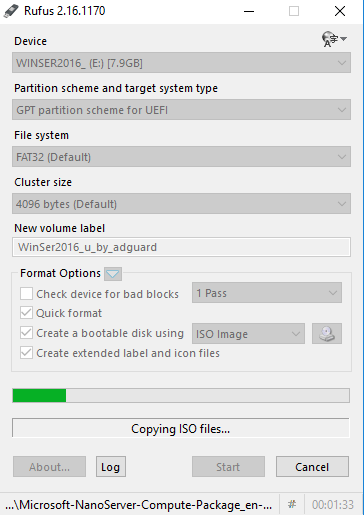
Step 7. Select 'Create a bootable disk using' and choose ISO image. Click the DVD icon and provide the path of an ISO image from your local hard drive. Leave other option as default.
Step 8. Click start and ignore the warning.
Wait for the wizard to complete.


No comments:
Post a Comment